
How to Use Your U Good Logistics Portal
Everything you need to sign in, request jobs, watch our crews live, and get reports — right from your phone.
1 Sign in — no password, ever
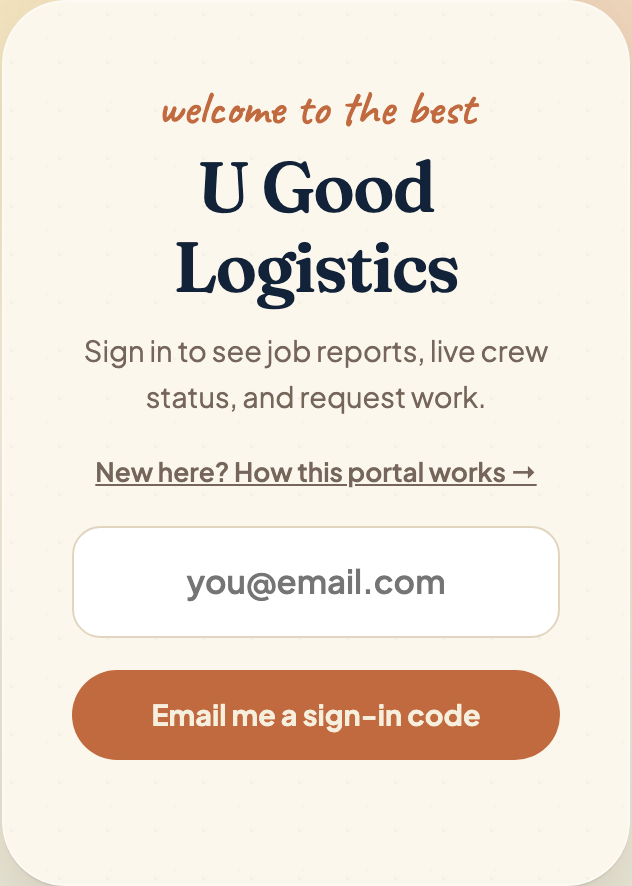
- Open the portal — ugoodlogistics.com/client — and type your email.
- Tap Email me a sign-in code.
- Check your inbox for an 8-digit code, type it in, and tap Verify & sign in. That’s it.
The ⟳ button in the header refreshes your data anytime you want the very latest.
2 Get the app on your phone
- Open the portal in Safari.
- Tap the Share button (the square with the arrow).
- Tap Add to Home Screen.
- Open the portal in Chrome.
- Tap the ⋮ menu in the top corner.
- Tap Add to Home screen — on some phones it says Install app.
- Tap Allow when it asks about notifications.
Either way it installs as “UGL Client” with the CLIENT-badged icon — one tap and you’re in, just like any app.
💻 On a computer? Go to ugoodlogistics.com/client in any browser and sign in with the same email. Everything here works there too — requests, live jobs, reports and messages.
3 Turn on alerts
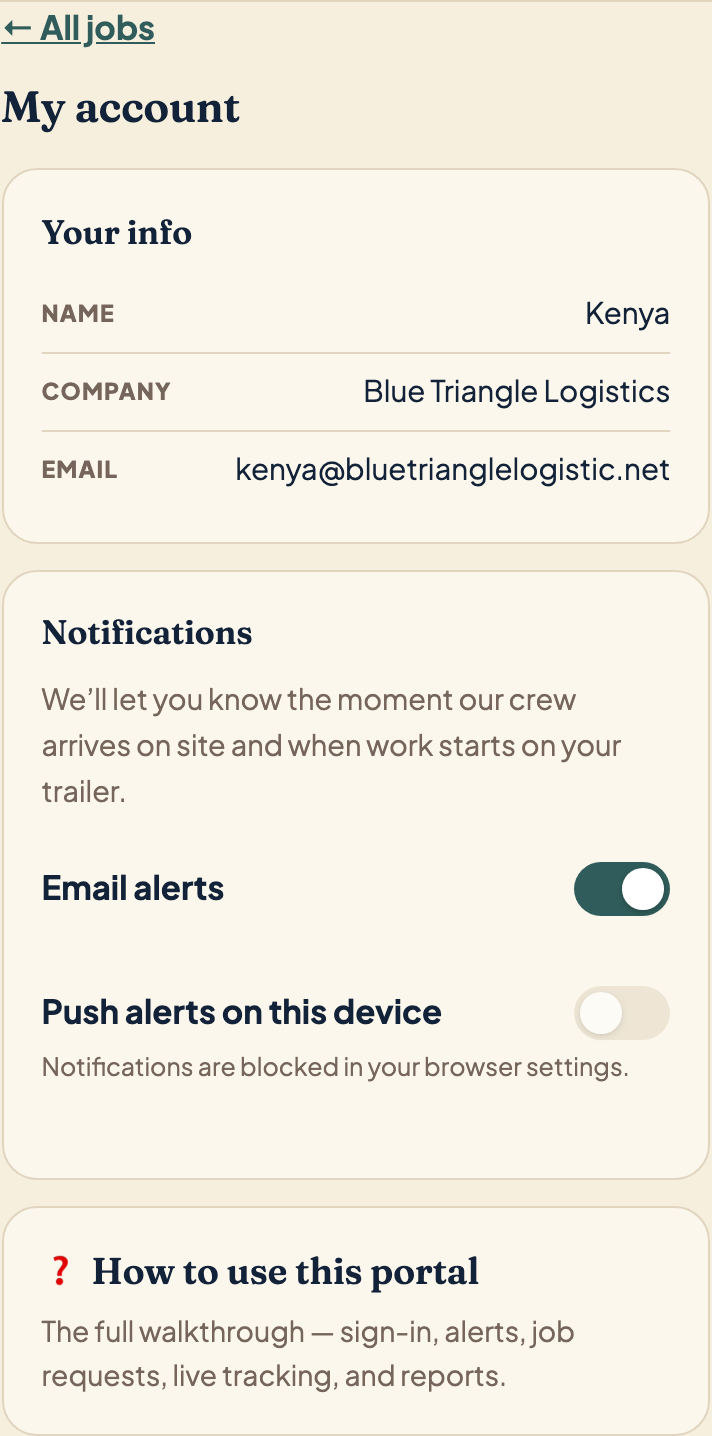
Tap ⚙️ Account in the header, then:
- Email alerts — on by default. Flip it off anytime.
- Push alerts on this device — flip it on and allow notifications when your phone asks.
What you’ll get: an alert the moment our crew arrives at your site, another the moment work starts on the trailer, fresh photos batched to your inbox about every 15 minutes while the crew works, and a job-complete summary — photo count, pallet totals, and crew notes — the moment the last crew member wraps. All by email and right on your phone’s lock screen, iPhone or Android (see step 2 for installing the app on each).
4 Request a job
Tap 🆕 Request a job and tell us everything in one go:
- PO number and requested start date
- How many teams (1 team = 2 workers) and how many days
- Site code, city, state, and address
- Service location — Dock Door, Off-Site Yard, or Parking Slip (with the slip/spot #)
- Trailer #(s) and what’s inside
- Services needed — tap the chips: Unload, Transload, Cleanout / Dump, Safety Rework
- Repalletization, restacking, damaged freight + a damage description
- Rate or crew notes — if this job pays differently or needs a specific crew setup, say it right on the form
- Photos — as many as you like, straight from your camera roll

5 Track your request
Your requests appear under My requests with a status chip that follows the job all the way to a locked-in crew:
- ⏳ Pending — we’ve received it and Ben is reviewing.
- ✓ Approved — accepted; you’ll get an email that we’re lining up your crew.
- 📅 Scheduling for [date] — it’s on our board with a target day.
- ✅ Staffed — [date] — crew locked. The card shows 👷 your crew by name (lead marked), and you get the Crew confirmed email with the same names — that’s your list for the site schedule you send your point of contact.
6 Pending POs — the waiting list
Sometimes you know a job is coming before Amazon has actually approved the PO. Don’t sit on it — put it in as a pending PO. It lands at the top of your jobs page under “Waiting on you”, and Ben can see it and start thinking about crew and gear before the paperwork clears.
A pending PO has no date yet — that’s the whole point. The date arrives with the approval. Each one shows a ⏳ Awaiting approval tag until then. Tap Job details to open the full card: site, trailer numbers, contents, damage notes, your site contact, and any photos you attached.
When you hear back, you have two buttons:
- It’s confirmed — schedule it — we ask for the approved date and it moves straight into scheduling.
- It fell through — it goes to the Archive. Nothing is deleted.
7 The Archive — nothing is ever lost
At the bottom of your jobs page is Archive. Every PO that fell through or went quiet is in there with its full detail and photos intact. This matters because a PO can go dead for two or three months and then come back approved — that happens, and when it does you don’t re-type anything.
Open any archived PO and you get:
- It came back — schedule it — enter the approved date and it goes straight into scheduling, same as a fresh confirmation.
- Put it back on the waiting list — it returns to “Waiting on you” with a fresh seven-day clock.
Each row tells you why it’s there — Fell through (you marked it) or No word for a week (it archived itself) — plus when you raised it and how long it waited.
Finding one again. Four filters across the top: show Fell through / Went ahead / everything, filter by site, and set a date range. The dates match on when the PO left the waiting list, not the job date — most of these never got a job date, so filtering on that would hide almost everything. If you remember roughly when it went quiet and which building it was, those two filters will find it.
8 Watch the job live
On job day, open the job and the 🔴 Live now block shows each crew member en route — with a map link and an ETA — and then on site. Tap ⟳ for the very latest. Sometimes a crew member drives to meet the truck and rides in from there — when that happens their tag switches from 🚗 driver to 🧍 passenger mid-route on your live view; totally normal, they’re still tracked the whole way.
You’ll get the arrival alert when the crew reaches your site, then the work-started alert when the trailer gets going. Photos land in the job as the crew takes them — no need to wait for the end of the day.
When everyone wraps, the 🔴 badge switches to a ✅ Completed badge on your jobs list. And in the rare case a crew member has a vehicle problem on the way, their row shows turned back — we’re already lining up coverage when you see that.

9 Message the crew lead
Every job has a 💬 chat right on the job card. Type a note — a gate code, a dock change, “call me when you’re close” — and the crew lead gets a ping on their phone that second. When they reply, you get pinged right back.
The chat opens to you on the morning of the job — before that the crew use it to sort out their own rides and logistics. From job morning on, everything they post reaches you live. Need us before job day? Reply to any of our emails, or call or text 302-307-9725.
10 Job reports
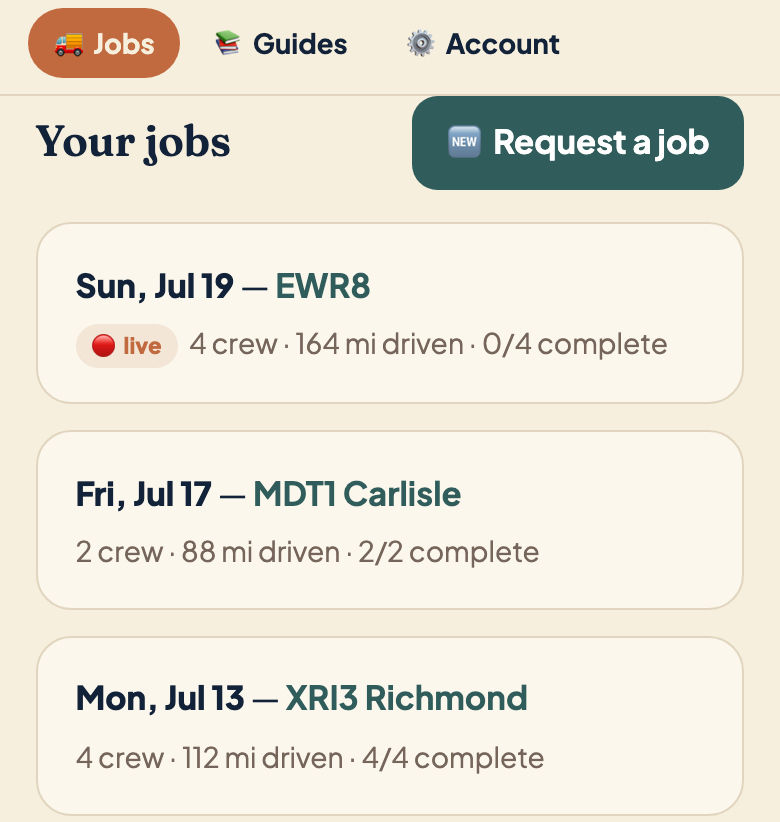
Tap any job in your list to see the full report:
- Every crew member with miles driven and drive time
- Arrival, work-start, and completion times
- Your point of contact — who we spoke to and when
- Pallet counts
- Photos by stage — before work, freight staged, trailer cleaned
Tap Print / Save PDF to keep a clean copy for your records. (One iPhone quirk: printing isn’t available from inside the installed home-screen app — open the portal in Safari for that one, and the button works perfectly.)


11 The ⟳ refresh button
Top of every screen, next to Sign out, there’s a circular ⟳ button. It pulls the newest data from our server into whatever you’re looking at right now.
Here’s why it matters. When a crew member arrives on site, uploads a photo, or finishes a trailer, that lands on our server immediately — but the page already open on your phone is showing you the picture from when you opened it. Tap ⟳ and the screen catches up. Nothing is missing; it just hasn’t been fetched yet.
Worth a tap whenever you’ve had a screen open for a few minutes, especially on job day when you’re watching the live block, or right after you approve a PO and want to see it move.
Questions? We’ve got you.